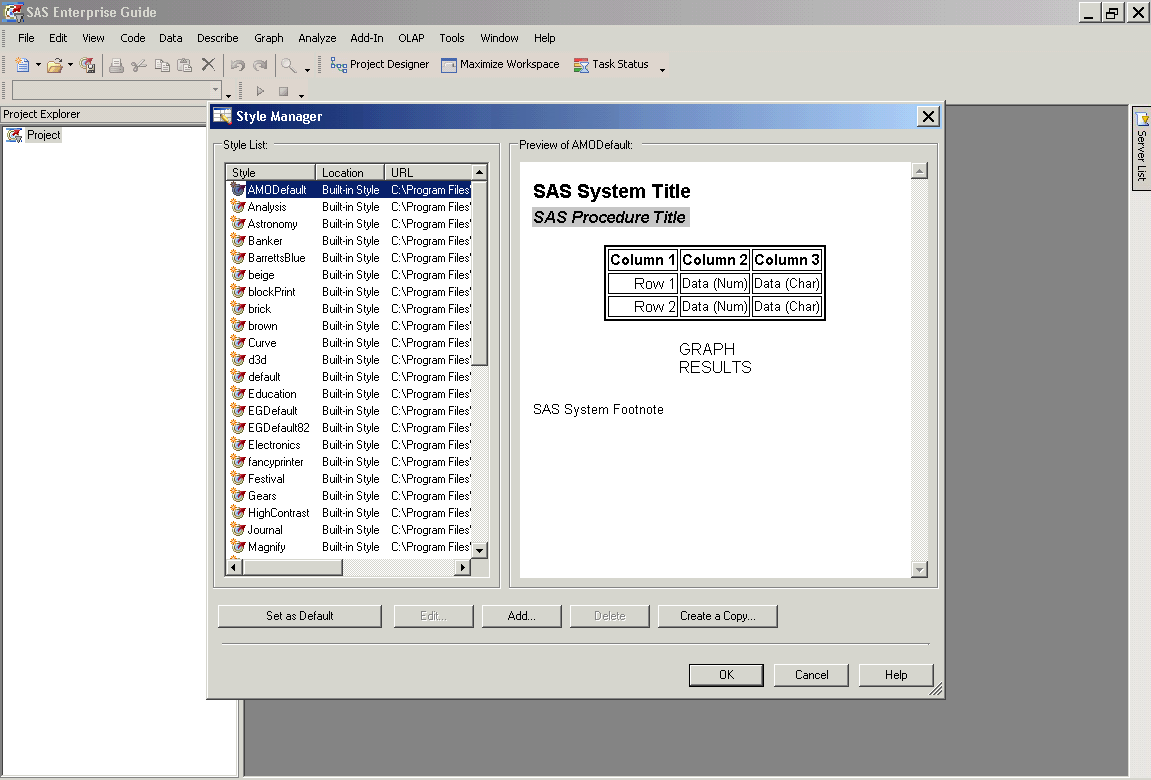
Have you ever wondered how to format your output in the style you want? How to get your favorite header colors, your favorite fonts and maybe even a background image(???) to your report you generate in SAS?
Well, it can all be done in SAS Enterprise Guide using your Style manager. Alternatively you can include your favorite stylesheet css file ( you get a lot of them on google.. Or you can create one on your won...) in your SAS EG..
Here is how you can go about it...
Go to Tools -> Style Manager. Here you find a variety of built-in styles on the left pane. If you see the url column in the Style List, you can notice that these are nothing but the pre defined css provided by the SAS Enterprise Guide.

You can choose any of the predefined styles here. If you would want to have a new style of your own.. then you can do the following:
- Click on Add button
- Select - Add new based on existing style option
- Select minimal in the dropdown menu
- Give name to your style
- Click on Ok button. You can see that a new css file has been created your home directory
- Now go to the Edit option
- You can select the Active element in the left bottom corner and chosee the element to which you need to apply the style. Eg: Choose Title and Note Corner and apply the color you want to add, etc.
- You also have the option to add a new element by clicking on Add element. Eg: Click on the Header available in the Preview window, and click on Add Element, give a suitable name and then add your customization.
- You can similarly customize your table borders, add an image, change fonts, add a custom footnote, etc.
Lastly, if you still are not satisfied with any of these features, you can always download a css from various sites and add them into the style manager by choosing the 'Add new external style' option.
So... The ground is open for you guys to play around and experiment.. Its a neat wizard which allows you to customize your report to a fairly good extent..
 Here, I have a requirement of using my passthrough syntax every now and then and I tend to forget the syntax, password and sometimes even my user name :-)
 Now, hit the tab or press Enter and you have the code on your Screen!